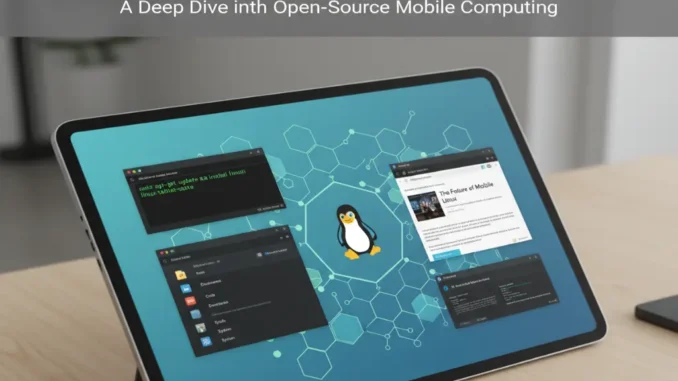
The modern consumer electronics market is dominated by mobile ecosystems designed around proprietary sandboxes. While platforms like iPadOS and Android offer polished user interfaces, they frequently impose strict software restrictions, enforce walled-garden application stores, collect extensive telemetry, and limit true administrative control over the underlying hardware. For developers, privacy advocates, power users, and open-source enthusiasts, a tablet with a Linux operating system represents the ultimate paradigm of mobile computing independence.
Running GNU/Linux natively on modern tablet hardware transforms a traditional consumption device into a mobile workstation. It enables full terminal access, native desktop application execution, granular system privacy, and extended hardware longevity through community-maintained kernels. However, deploying and operating a Linux tablet involves navigating complex trade-offs between hardware compatibility, touch-optimized user interfaces, power management, and driver support.
This comprehensive guide delivers an in-depth analysis of the Linux tablet ecosystem. We explore native open-source hardware options, examine convertible x86 platforms, evaluate touch-centric Linux distributions, detail step-by-step installation strategies, and provide practical performance tuning workflows.
Core Takeaway: A Linux tablet combines the portable form factor of touch hardware with the modular power of GNU/Linux. Whether utilizing custom-built ARM hardware like the PineTab or repurposing convertible x86 devices like the Microsoft Surface, users gain full root access, uncompromised privacy, and true desktop software capabilities on the go.
1. The Case for Linux on Tablets: Why Ditch Proprietary OS?
The decision to run GNU/Linux on slate hardware is driven by both functional necessity and software philosophy. Traditional mobile operating systems treat the user as a consumer rather than an administrator. Linux completely shifts this dynamic:
- Unrestricted Administrative Freedom (Root Access): Native Linux grants absolute authority over the operating system. Users can modify system configuration files, compile custom kernel modules, configure advanced networking pipelines, and manage processes without security restrictions or OS-level lockouts.
- Desktop-Class Productivity Engine: Mobile app stores often offer dumbed-down versions of professional software. A Linux tablet natively runs full desktop software stacks—including VS Code, LibreOffice, GIMP, Blender, Wireshark, and Krita—directly on the touch interface.
- Data Sovereignty and Telemetry Elimination: Commercial mobile operating systems continuously transmit behavioral analytics, location traces, and application usage telemetry to central servers. GNU/Linux operating systems operate with complete transparency, eliminating backdoors and unwanted tracking.
- Hardware Lifespan Extension: Tech manufacturers regularly abandon software updates for older tablet models, rendering perfectly operational hardware obsolete through planned software deprecation. Lightweight Linux distributions can run efficiently on legacy hardware for years past vendor end-of-life dates.
2. Hardware Landscape: Native ARM vs. Convertible x86
When selecting or configuring a Linux tablet, hardware architecture dictates software compatibility, battery runtime, and installation complexity. The market generally splits into two main hardware paths: Native ARM Linux Tablets and Convertible x86/x64 Devices.
A. Native ARM Linux Tablets
Native ARM tablets are built from the ground up to support open-source software and open hardware schematics. Projects like the PineTab series (Pine64) serve as primary examples of this category.
These devices feature mainlines-friendly SoCs (such as Rockchip architecture), easily accessible UART headers, removable flash storage, and physical hardware kill-switches for Wi-Fi, Bluetooth, and cameras. While ARM devices offer exceptional power efficiency and low thermal output, raw compute throughput is typically lower compared to x86 options, making them best suited for light productivity, terminal management, and software testing.
B. Convertible x86 Tablets and 2-in-1 Laptops
Convertible x86 devices—such as the Microsoft Surface Pro series, Lenovo ThinkPad X1 Yoga, and Dell XPS 13 2-in-1s—provide high performance, enterprise-grade display panels, active digitizer pen input, and high-RAM configurations. By deploying Linux on x86 slates, users gain access to the vast x86_64 software library without needing architecture emulation.
The primary challenge with converted x86 hardware lies in proprietary driver support. Specialized hardware modules—such as IPU3/IPU6 webcams, ambient light sensors, hardware orientation gyroscopes, and battery fuel gauges—often require specialized Linux kernel trees (e.g., the Linux-Surface kernel patch) to function properly.
3. Linux Distributions for Tablets Compared
Not all Linux distributions are optimized for touchscreen interaction. Standard desktop environments designed around precise mouse pointers and physical keyboard shortcuts can prove difficult to navigate on a touch panel. The following specialized distributions and graphical shells excel on tablet hardware:
| Distribution / Desktop | Target Architecture | Touch Optimization Features | Best Hardware Fit |
|---|---|---|---|
| Ubuntu (GNOME Wayland) | x86_64 / ARM64 | Native touch gestures, auto-screen rotation, large UI targets, built-in OSK | Microsoft Surface, Convertible x86 Laptops |
| PostmarketOS (Phosh / Plasma Mobile) | ARM64 / x86_64 | Alpine-based, ultra-lightweight, smartphone & tablet mobile UI integration | PineTab, Old Android Tablets (Mainline conversion) |
| Fedora Workstation | x86_64 / ARM64 | Bleeding-edge Wayland integration, smooth 1:1 fractional touchpad & touch gestures | Modern x86 2-in-1s (Dell XPS, Lenovo Yoga) |
| Manjaro ARM (KDE Plasma) | ARM64 | Highly customizable touch shell, virtual keyboard triggers, Arch package access | PineTab 2, Rockchip-based ARM Developer Boards |
| Debian Mobian | ARM64 | Debian stability paired with Phosh mobile interface layer | ARM-based open hardware slates |
4. Crucial Touch UI Environments: GNOME vs. Phosh vs. KDE Plasma
The user interface layer dictates how practical a tablet is during daily touch-only operation. Three primary graphical environments dominate the space:
1. GNOME Shell (Wayland Window System)
GNOME on Wayland is currently the most complete touch desktop interface for x86 and high-end ARM tablets. Key features include:
- Fluid Multi-Touch Gestures: 1:1 swipe animations for switching workspaces, revealing the application overview, and zooming.
- Automatic On-Screen Keyboard (OSK): Automatically pops up when text input fields gain system focus across GTK and Qt applications.
- Sensor Integration: Direct support for
iio-sensor-proxy, enabling smooth 90-degree and 180-degree display auto-rotation driven by internal hardware accelerometers.
2. Phosh (Phone Shell)
Developed initially by Purism for the Librem 5 mobile device, Phosh is a lightweight touch shell built on GTK and Wayland. It is optimized specifically for smaller screens and lower-powered ARM CPUs. Applications open in full-screen mode by default, and window management is handled via intuitive swipe-down cards.
3. KDE Plasma Mobile
KDE Plasma Mobile adapts the flexible KDE desktop environment into a touch-first interface. It features customizable drop-down quick-settings panels, widget placement, touch-optimized file management (Dolphin Mobile), and deep customization options for power users.
5. Step-by-Step Installation Framework (x86 Convertible Tablet Example)
Deploying a Linux operating system on an x86 convertible tablet requires preparing the firmware to accept non-factory boot loaders. Below is an overview of the typical deployment procedure:
Step 1: Firmware Preparation & Secure Boot Management
Boot into the tablet’s UEFI/BIOS interface (typically holding Volume Up + Power during startup). Access the security settings panel to temporarily disable Secure Boot, or enroll the custom MOK (Machine Owner Key) cryptographic signatures if installing distributions like Fedora or Ubuntu that support signed UEFI boot paths.
Step 2: Flash Installation Media
Write your chosen Linux ISO (such as Fedora Workstation or Ubuntu Desktop) to a USB drive using imaging tools like dd or Rufus. Connect the installation drive to the tablet via a USB-C hub or adapter.
Step 3: Partitioning and Installation
Boot into the live environment using the UEFI boot override menu. Launch the distribution installer, configure drive partitioning (allocating an EFI System Partition, Root partition, and Swap file/partition for hibernate states), and complete the base OS installation.
Step 4: Specialized Hardware Kernel Deployment
For specialized hardware (e.g., Microsoft Surface devices), add community repository keys after booting into your new installation to install customized kernel packages (e.g., linux-surface). These custom kernels patch touchscreen digitizer drivers, camera drivers, battery monitors, and thermal profiles natively.
6. Power Management, Battery Optimization & Touch Tweaks
Because desktop Linux environments are traditionally optimized for AC-powered systems or traditional laptops, tablet hardware requires post-installation tuning to ensure long battery life and responsive touch performance.
A. Battery Longevity Optimization
- TLP / Power Profiles Daemon: Install
power-profiles-daemonorTLPto automate CPU frequency scaling and active power state switching based on load. - Hardware-Accelerated Video Decoding: Enable VA-API / VDPAU GPU video acceleration inside web browsers (Firefox / Chromium). Offloading video decoding from the CPU to the GPU drastically cuts power consumption when streaming video.
- Deep Sleep Configuration: Ensure system suspend states are configured to use
s2idleordeepsleep modes via systemd to prevent passive battery drain when the screen is turned off.
B. Stylus Digitizer and Gesture Fine-Tuning
If your tablet includes an active pressure-sensitive stylus (Wacom or N-Trig protocols), install libwacom utilities to map side-buttons, adjust pressure curves, and calibrate screen coordinate mapping. Using Wayland over X11 provides native palm rejection out of the box, preventing accidental hand inputs while writing or sketching in digital art software.
7. Real-World Workflows: What Can You Do on a Linux Tablet?
A fully configured Linux tablet supports diverse workflows that are difficult or impossible to run on traditional mobile platforms:
1. On-the-Go Software Development & DevOps
Run native Docker containers, deploy local Kubernetes test clusters, write code inside VS Code, and SSH directly into cloud infrastructure. Paired with a compact Bluetooth keyboard or detachable cover, the tablet functions as a portable developer terminal.
2. Digital Art, Illustration & CAD Design
By leveraging pressure-sensitive pen input in applications like Krita, Inkscape, and GIMP, creators gain a professional graphics tablet experience without subscription fees. Vector drawing and CAD applications (such as FreeCAD) run natively without mobile feature compromises.
3. Network Diagnostics & Cybersecurity Field Operations
Network administrators and security auditors can attach external Wi-Fi monitoring adapters or Ethernet Dongles to run diagnostic suites like Wireshark, Nmap, and Metasploit directly on a handheld slate during field audits.
Frequently Asked Questions (FAQs)
It depends heavily on the device’s bootloader status. Most iPads have locked bootloaders that prevent non-iOS kernel execution. Many Android tablets also feature locked bootloaders, though select Android devices supported by projects like postmarketOS can boot mainline Linux kernels. Convertible x86 tablets remain the most straightforward hardware to convert.
Yes. Modern Wayland compositors and Linux drivers natively support digitizer systems like Wacom, N-Trig, and MPP (Microsoft Pen Protocol). Applications like Krita recognize pressure sensitivity, tilt, and palm rejection without requiring third-party drivers.
Out of the box, unoptimized Linux may consume more power due to missing hardware-accelerated video decoding or unconfigured sleep states. However, after installing power management suites (like power-profiles-daemon) and configuring Wayland GPU rendering, battery life on convertible x86 tablets closely approaches native Windows battery performance.
Yes. Tools like Waydroid allow you to run a full Android runtime environment directly inside Linux containers. Waydroid leverages LXC containers to run Android applications seamlessly alongside desktop Linux apps with minimal performance overhead.
8. Final Summary and Recommendations
Running a tablet with a Linux operating system offers an unbeatable combination of software freedom, data privacy, and desktop computing power in a portable form factor. While native ARM platforms like the PineTab continue to push open hardware forward, converted x86 2-in-1s running modern Linux distributions like Fedora or Ubuntu provide an immediate, high-performance solution for daily touch computing.
By selecting a touch-friendly desktop environment like GNOME or Phosh, applying power optimizations, and utilizing containerized environments like Waydroid, users can build a fully customizable mobile workstation free from corporate sandboxes and telemetry constraints.




Leave a Reply